Capturing a screenshot on the iPhone 17 is remarkably simple, making it easy to save, share, and remember important moments on your device. Below is a friendly guide covering all the ways to take screenshots on the iPhone 17, including some expert tips and a closing reminder about why screenshots matter.
Best Ways to Take a Screenshot on Your iPhone 17
As Apple changes its designs, the ways to take screenshots have become easier to use and more flexible.
This helpful guide will show you how to capture your iPhone 17 screen in every way, whether you’ve used an iPhone before or this is your first time.
The Classic Button Combo: Tried and True
The most familiar method for taking a screenshot remains the physical button combination. It’s instant, reliable, and works every time.
Here’s how to do it:
- Navigate to the screen you want to capture—a text message, a website, or a high score in a game.
- Quickly and simultaneously press and release the Side Button (on the right side of the phone) and the Volume Up button on the left.
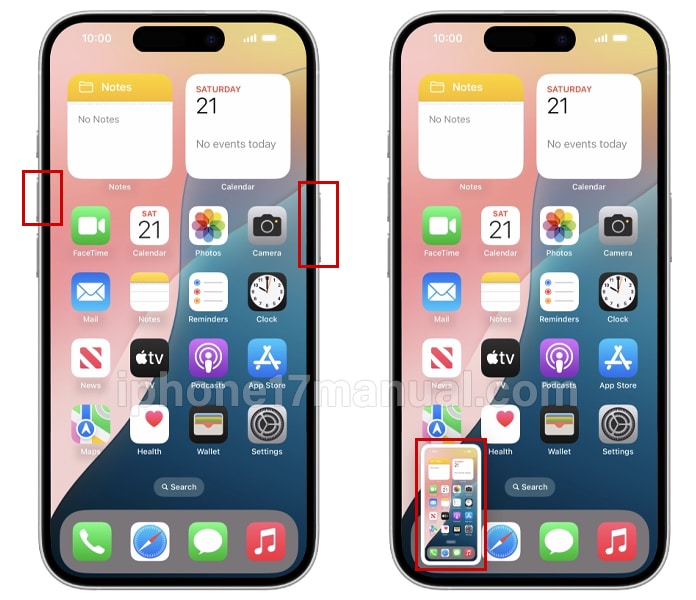
- You’ll hear a satisfying camera shutter sound (if your phone isn’t on silent) and see a tiny thumbnail preview flash in the bottom-left corner of your screen.
And that’s it! Your screenshot is now saved to your Photos app in a dedicated “Screenshots” album.
Using AssistiveTouch: For Ultimate Ease
For those who prefer a software-based approach or have difficulty pressing the physical buttons, AssistiveTouch is a perfect, customizable solution. This feature places a virtual button on your screen that you can tap to perform actions like taking a screenshot.
To enable and use AssistiveTouch:
- Open Settings and navigate to Accessibility.
- Tap Touch, and then select AssistiveTouch.
- Toggle the switch to turn it ON. A small gray button will appear on your screen.
- Tap the button to open its menu. You can now either:
- Go to Settings > Accessibility > Touch > AssistiveTouch > Customize Top Level Menu to add a dedicated screenshot shortcut.
- Or, simply tap the virtual button, then tap Device > More > Screenshot.
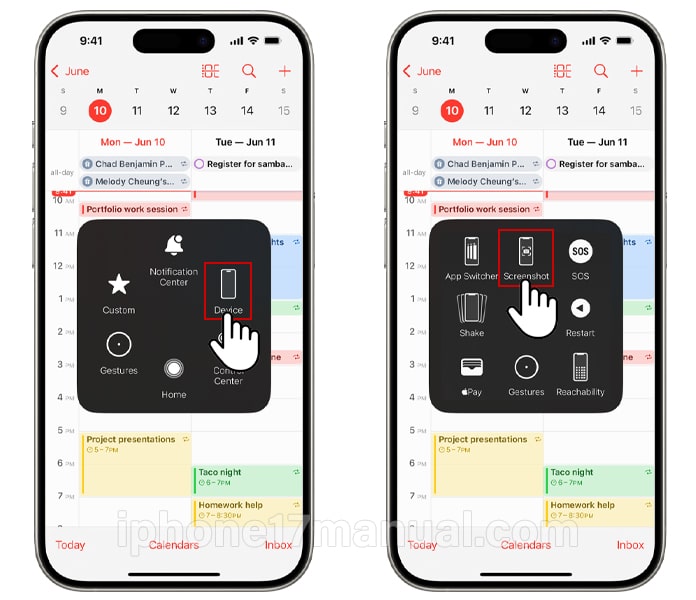
- A single tap will instantly capture your screen, offering a hands-free alternative.
The Power of Back Tap: A Secret Double-Tap
One of the coolest and most discreet ways to take a screenshot is by using the Back Tap feature. This allows you to literally double-tap the back of your iPhone 17 to trigger an action.
To set up Back Tap for screenshots:
- Go to Settings > Accessibility.
- Select Touch.
- Scroll down and tap Back Tap.
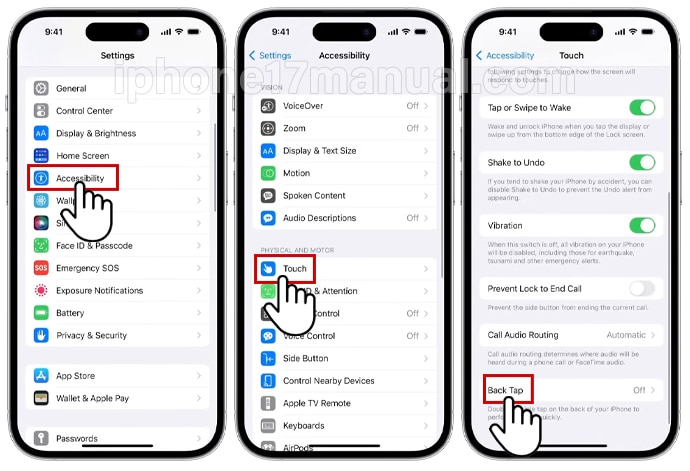
- You can choose between Double Tap or Triple Tap. Select one.
- Scroll through the list of actions and select Screenshot.
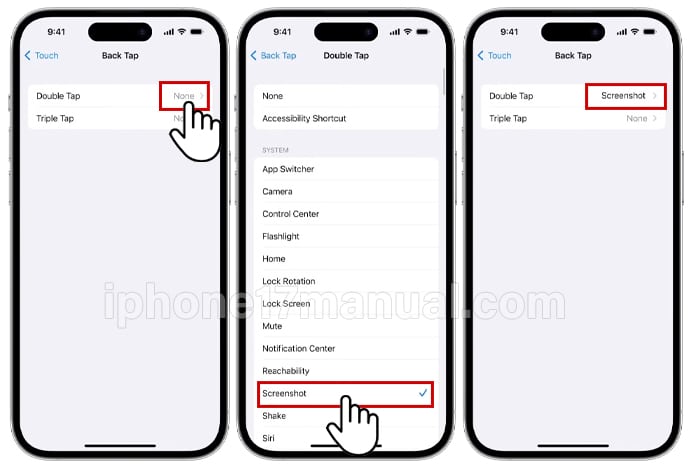
Now, whenever you want to capture your screen, just firmly double-tap (or triple-tap) the back of your iPhone. It feels like magic!
What to Do After You Take the Screenshot
The magic doesn’t stop at the capture. The iPhone 17’s software shines in the editing suite. When you take a screenshot, a thumbnail preview appears in the corner for a few moments.
- Tap the thumbnail to instantly open the Markup editor. Here, you can crop, draw, add text, magnify a section, or sign a document before saving or sharing it.
- Swipe the thumbnail left to dismiss it immediately, and the screenshot will save directly to your Photos app without any edits.
Taking a screenshot on your iPhone 17 is designed to be effortless, offering multiple methods to suit your preference. Whether you stick with the classic button combo, embrace the convenience of AssistiveTouch, or use the futuristic Back Tap trick, you’re now equipped to capture and share anything on your screen with confidence.
So go ahead, try out each method and find your favorite. Your iPhone 17 is a tool for creativity and connection, and knowing these simple steps ensures you’ll never miss a moment worth saving. Happy screenshotting!

5 thoughts on “How to capture screenshots on iPhone 17”