Blocking a contact on the iPhone 17 is a simple way to take control of personal communications and keep unwanted callers, texts, or emails at bay. This article will walk through the easy steps to block contact on your iPhone 17, offering both direct instructions and helpful explanations.
Step-by-Step to Block Contact on Your iPhone 17
Blocking a contact works across calls, messages, and even emails, all in just a few taps.
Method 1: Using the Phone App
- Open the Phone app and go to the Calls tab.
- Find and tap the contact you wish to block.
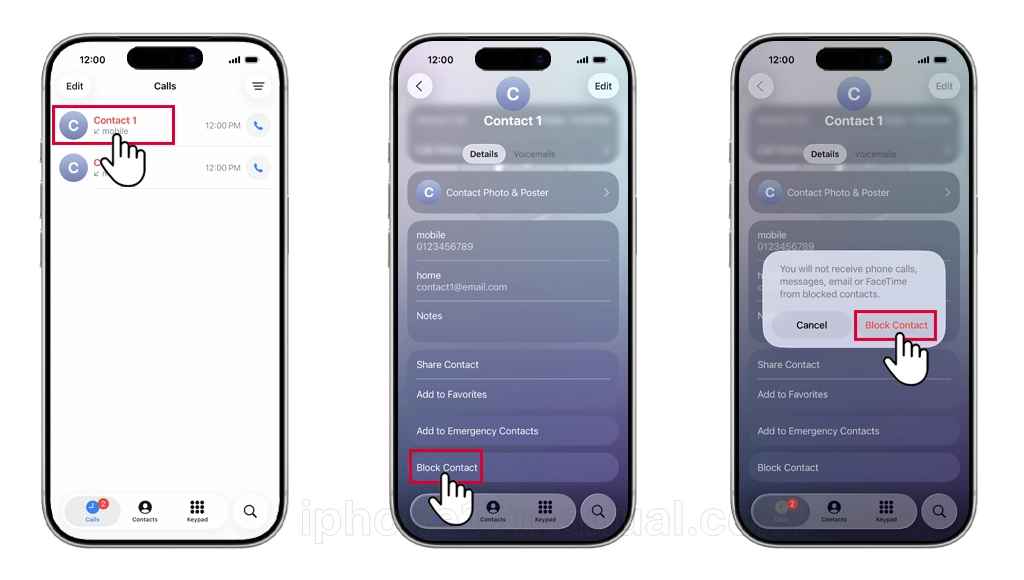
- Scroll down and tap “Block Contact.”
- Tap “Block Contact” to confirm.
Method 2: Using the Messages App
- Launch the Messages app.
- Open the conversation with the person you want to block.
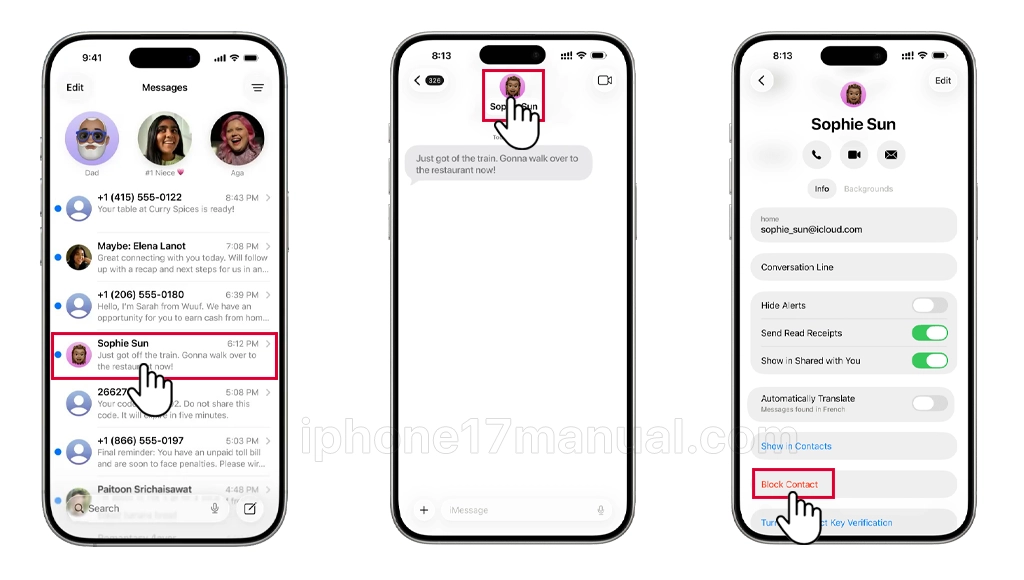
- Tap the contact’s name or profile picture at the top.
- Scroll down and tap “Block Contact,” then confirm.
Block Contact Through Settings
- Open the Settings app.
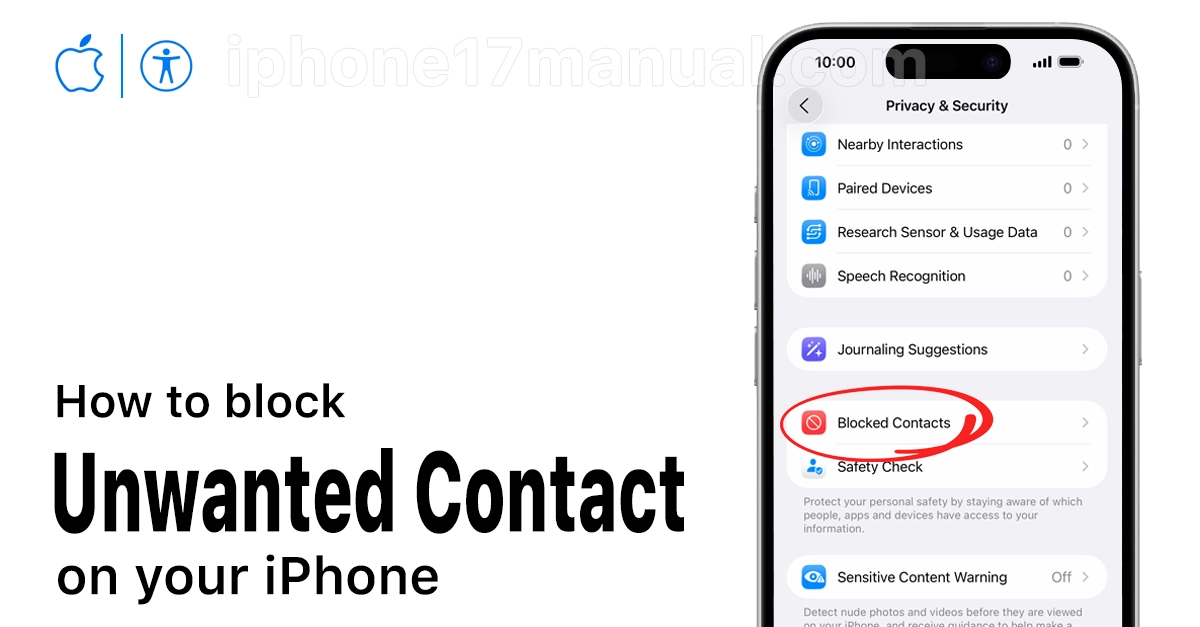
- Tap “Privacy & Security,” then choose “Blocked Contacts.”
- Tap “Add Blocked Contact,” select the contact, and confirm.
What Happens After Blocking
- The blocked contact can still leave voicemails, but notifications are muted.
- Messages and calls from blocked contacts won’t be delivered.
- The blocked person isn’t notified of the action.
How to Unblock a Contact
If you change your mind, you can easily reverse the process:
- Open the Phone app, go to the Contacts tab, select the contact, scroll down, and tap “Unblock This Caller.”
- For Messages, visit Settings → Privacy & Security → Blocked Contacts, tap “Edit,” and remove the contact from the blocked list.
Tips for handling spam calls and messages effectively
To handle spam calls and messages effectively on an iPhone 17, take advantage of new iOS 26 features along with tried-and-true methods. These tips help minimize interruptions, keep your inbox clean, and protect personal information.
Silence Unknown and Spam Callers
- Enable “Screen Unknown Callers” in Settings → Apps → Phone.
- Choose “Ask Reason for Calling” or “Silence” to have Siri screen or silence callers not in your Contacts.
This ensures suspected spam and robocalls are sent to voicemail, so your phone doesn’t ring unnecessarily.
Block and Report Specific Numbers
- In the Phone or Messages app, tap on the spam number, select the info (i) icon, and choose “Block Contact.”
- Use the “Report Junk” option that appears after receiving a suspicious text or call, which helps Apple improve its spam detection.
Filter Spam and Unknown Messages
- Go to Settings → Apps → Messages and enable “Screen Unknown Senders” and “Filter Spam.”
This automatically moves messages from unknown contacts and suspected spam to separate folders, reducing distractions and helping you focus on important messages.
Keep Your Contacts Updated
- Ensure important numbers (doctors, schools, businesses) are saved in your Contacts so legitimate callers aren’t filtered out by mistake.
Use Carrier Spam-Blocking Tools
- Many carriers (like Verizon, AT&T, and T-Mobile) offer spam detection or blocking in their apps or within the iOS Phone settings. Make sure these features are turned on for extra protection.
Stay Vigilant and Smart
- Don’t respond to suspicious texts or give out personal information. Delete spam messages and block future communications from those numbers.
- Regularly review your spam and blocked lists so you don’t miss anything important.
By activating built-in filters and being alert, managing spam on the iPhone 17 is seamless and helps keep your digital experience worry-free.
Take Charge of Your Connections
Managing your communications on the iPhone 17 is effortless and empowers you to create your ideal digital environment. Blocking a contact ensures that only the right people reach you, making your device experience more enjoyable and stress-free. Remember, you’re always in control, and with the iPhone 17, that control is only a few taps away.

2 thoughts on “How to block unwanted contact on iPhone 17 to protecting your privacy”