Getting calls from unknown numbers can be really annoying and disruptive, especially when you’re trying to focus, relax, or sleep. Thankfully, the iPhone 17 offers smart features designed to help you block or silence these unwanted calls with just a few taps. This guide will walk you through how to easily block unknown calls on your iPhone 17, so you can regain control of your phone and peace of mind.

What does “Unknown Call” mean on iPhone 17?
On your iPhone 17, an “unknown call” is any incoming call where the caller’s number is not saved in your contacts or is hidden (like “No Caller ID”). These calls can be from marketers, scammers, or people you simply don’t want to answer.
The good news is Apple has enhanced call-blocking and screening features in iOS 17 to reduce interruptions from these calls.
How to silence unknown callers on iPhone 17
One of the simplest ways to block unknown calls on the iPhone 17 is by enabling the “Unknown Callers” feature. Here’s how:
- Open the Settings app on your iPhone.
- Scroll down and tap Apps.
- Select Phone.
- Find and enable Unknown Callers.

When turned on, this feature automatically silences calls from numbers not in your contacts, recent calls, or Siri Suggestions, sending them straight to voicemail.
You won’t get notifications or ringing sounds, but you can still see these missed calls in a separate list named “Unknown Callers.” This way, you don’t have to be disturbed by them but can review if anything important comes through.
Using call screening for more control
If you want even more control, the iPhone 17 supports Call Screening. This feature lets your phone answer calls from unknown numbers and asks the caller to state their name and reason for calling. Your iPhone then rings and shares this info before you decide to pick up.
To enable Call Screening:
- Go to Settings > Apps > Phone.
- Tap Call Screening.
- Choose your preferred setting: Never, Ask Reason for Calling, or Silence.

This smart screening helps filter out unwanted calls by giving you pre-call information so you can easily decide which calls to answer.
Blocking specific numbers manually
If you receive calls from persistent unknown numbers, you can block them manually:
- Open the Phone app and go to Recents.
- Find the unknown number and tap the info button (the “i” in a circle).
- Scroll down and tap Block this Caller.
- Confirm the block.
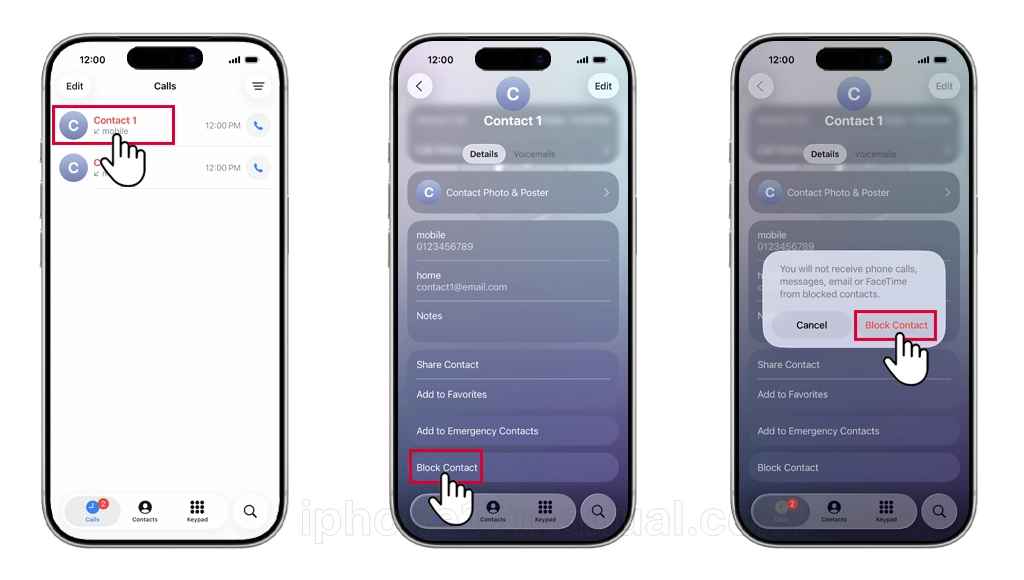
Once blocked, the caller can no longer reach you by phone, FaceTime, or messages.
Additional tips to avoid spam calls
Besides blocking unknown callers, iPhone 17 also lets you turn on filters for spam calls identified by your carrier. You can enable these in the phone settings under the Filter Unknown Callers or Spam Calls options. When turned on, spam numbers are automatically silenced and sent to voicemail without interrupting you.
Apple has also introduced new features like Live Voicemail, which transcribes voicemails from unknown callers so you can quickly see if the call is important without answering.
Your iPhone 17 combines several powerful tools to help you enjoy a calmer, spam-free calling experience. By silencing unknown callers, using call screening, and manually blocking suspicious numbers, you can keep your calls strictly to people you know and trust. These settings are easy to enable and can make a huge difference in reducing unwanted interruptions.

1 thought on “How to block unknown calls on your iPhone 17”